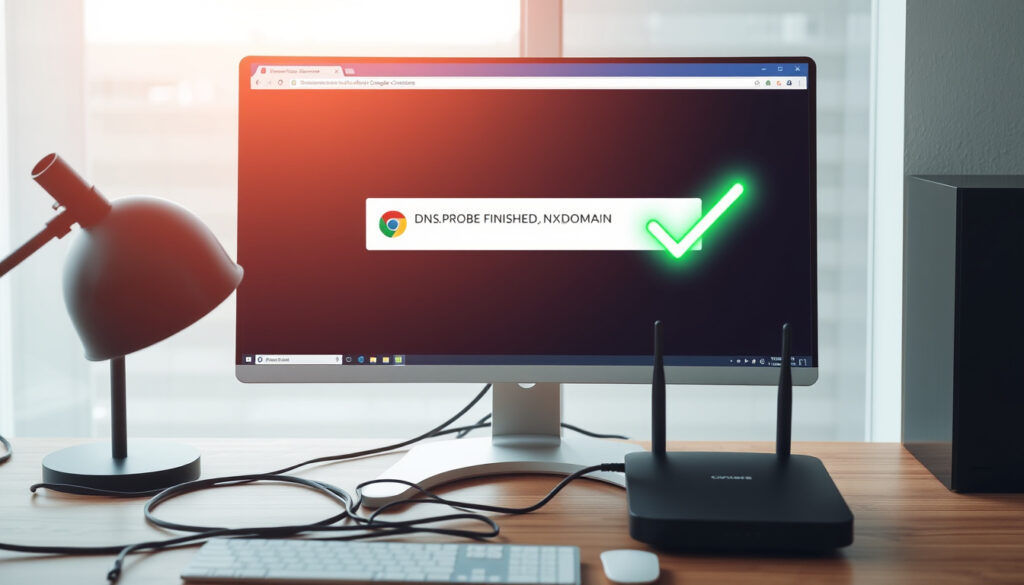
DNS Probe Finished NXDOMAIN – Fix Guide for Windows and Chrome
The DNS_PROBE_FINISHED_NXDOMAIN error appears when Chrome fails to locate a website’s address in the Domain Name System. This technical failure prevents browsers from connecting to web pages, displaying a message that the domain simply does not exist. Understanding what triggers this error and how to resolve it can save users significant time and frustration.
When this error surfaces, the browser has attempted to translate a web address into a numerical IP address but received a response indicating the domain cannot be found. The NXDOMAIN status code specifically means “non-existent domain,” signaling that DNS servers have no record matching the requested website name.
This problem affects users across different operating systems and devices, though Windows and Chrome users encounter it most frequently. The error can stem from local configuration issues or problems with internet service providers, making targeted troubleshooting essential for most users.
What Does DNS_PROBE_FINISHED_NXDOMAIN Mean?
The DNS_PROBE_FINISHED_NXDOMAIN error indicates a fundamental breakdown in the domain name resolution process. When users type a web address into Chrome, the browser queries DNS servers to obtain the corresponding IP address. The NXDOMAIN response means these servers returned a definitive answer that no such domain exists in their records.
This differs from timeout errors or connection refusals. NXDOMAIN represents a clear response from DNS infrastructure stating the domain cannot be resolved. According to technical documentation from Cloudflare’s DNS learning resources, NXDOMAIN responses occur when DNS servers cannot find matching records for the queried domain name.
This error specifically means the domain itself cannot be found in DNS records. It does not indicate the website’s server is down or that your internet connection has failed entirely. The domain resolution process itself returned a negative answer.
DNS_PROBE_FINISHED_NXDOMAIN
Domain Does Not Exist
Windows, Chrome
Flush DNS Cache
Essential Insights About This Error
- Chrome displays this error when DNS queries return NXDOMAIN status codes from authoritative name servers
- The problem originates from the DNS resolution chain rather than website server availability
- This error commonly surfaces after Windows system updates or network configuration changes
- The error affects multiple browsers on Windows but appears most frequently in Chrome
- ISP-related DNS server issues frequently trigger this error across all devices on a network
- The error can occur even when websites genuinely exist due to local cache problems
- Contacting your internet service provider may become necessary when the issue persists across all websites
| Aspect | Details |
|---|---|
| Error Type | DNS Resolution Failure |
| Response Code | NXDOMAIN (Non-Existent Domain) |
| Affected Browsers | Chrome primary, also Edge, Firefox |
| Operating Systems | Windows dominant, also macOS, Linux, Android, iOS |
| Typical Resolution | Local configuration fixes resolve most cases |
| Severity Level | Non-critical, user-resolvable in most situations |
What Causes the DNS_PROBE_FINISHED_NXDOMAIN Error?
Multiple factors can trigger the DNS_PROBE_FINISHED_NXDOMAIN error. Understanding these causes helps users identify the appropriate solution more quickly. The most frequent culprit involves corrupted or outdated DNS cache entries stored locally on the user’s device.
DNS Cache Problems
When computers visit websites, they store DNS lookup results locally to speed up future visits. These cached records can become stale, corrupted, or contain incorrect mappings from previous visits. The operating system may attempt to use these outdated records, leading to NXDOMAIN responses even when domains actually exist.
Browsers maintain their own cache layers separate from the operating system. Chrome specifically stores DNS resolution data that can conflict with system-level cache, creating situations where the browser returns errors while other network applications function normally. This explains why some users experience the error only within Chrome.
DNS Server Configuration Issues
Internet service providers supply default DNS servers that may become unreachable, slow, or misconfigured over time. When these servers fail to respond correctly, browsers receive NXDOMAIN responses that may not accurately reflect domain existence. Switching to public DNS services like Google’s 8.8.8.8 often resolves these provider-side problems.
Network equipment including routers can also maintain their own DNS cache or relay settings that contribute to resolution failures. Home networking equipment with outdated firmware may mishandle DNS queries or fail to forward requests properly to upstream servers.
Local Hosts File Conflicts
The hosts file on each operating system provides a manual method for directing domain names to specific IP addresses. Incorrect entries in this file can override DNS lookups entirely, causing browsers to fail when attempting to reach domains. Malware sometimes modifies hosts files to redirect users away from legitimate websites.
Security software including virtual private networks, firewalls, and antivirus programs can intercept and redirect DNS requests. These security layers sometimes misidentify legitimate requests or fail to forward them properly, resulting in resolution failures that manifest as NXDOMAIN errors.
Many users encounter this error after system updates, router firmware changes, or switching between different network connections. These events often invalidate cached DNS records without properly refreshing them, leading to resolution failures for domains that genuinely exist.
How to Fix DNS_PROBE_FINISHED_NXDOMAIN on Windows?
Windows users have several built-in tools to resolve DNS resolution failures. These methods range from simple cache clearing to network stack resets. Starting with the quickest solutions and progressing to more comprehensive fixes typically produces the best results.
Quick Fixes to Try First
Restarting your computer and router represents the simplest initial troubleshooting step. This clears temporary network glitches and refreshes DHCP lease information that may be contributing to the problem. Power down both devices completely, wait thirty seconds, then restart the router followed by the computer.
Disabling virtual private networks or security software temporarily helps identify whether these programs are interfering with DNS resolution. If the error disappears after disabling such software, configuration adjustments or software updates may resolve the underlying conflict.
Flushing the DNS Cache
The primary solution for most users involves clearing the DNS resolver cache through Command Prompt with administrator privileges. Opening the command line interface and running specific commands forces Windows to discard all cached DNS records and perform fresh lookups for subsequent requests.
The ipconfig /flushdns command removes all entries from the DNS client resolver cache. After executing this command, users should attempt visiting the problematic website again. Multiple sources confirm this method resolves DNS_PROBE_FINISHED_NXDOMAIN errors in the majority of cases.
Run these commands in Command Prompt as Administrator: ipconfig /flushdns, followed by ipconfig /release, then ipconfig /renew, and finally netsh winsock reset. Restart your computer after completing these steps.
| Command | Purpose |
|---|---|
| ipconfig /flushdns | Clears the DNS resolver cache |
| ipconfig /release | Releases current DHCP lease |
| ipconfig /renew | Obtains new DHCP lease and IP address |
| netsh winsock reset | Resets network catalog to clean state |
Changing DNS Servers
Switching to Google Public DNS provides reliable alternative name servers when ISP servers fail. Windows users can configure this through the Network and Internet settings panel by accessing adapter options and modifying IPv4 properties.
The process involves navigating to Settings, selecting Network and Internet, choosing Change adapter options, right-clicking the active connection, accessing Properties, selecting Internet Protocol Version 4, and entering Google’s DNS addresses: 8.8.8.8 as primary and 8.8.4.4 as secondary.
Editing the Hosts File
The Windows hosts file located at C:\Windows\System32\drivers\etc\hosts can contain problematic entries blocking legitimate domains. Opening this file with administrator privileges in Notepad allows users to examine and remove suspicious entries that may be causing resolution failures.
Users should look for lines containing the problematic domain followed by 127.0.0.1 or other unexpected addresses. Removing these entries and saving the file often resolves the error. Creating a backup before making changes protects against accidental misconfiguration.
Chrome-Specific Fixes for DNS Probe Finished NXDOMAIN
Chrome maintains its own internal DNS cache separate from the operating system, meaning browser-specific issues can cause errors even when system-level DNS functions correctly. Addressing Chrome’s cache and settings often resolves persistent errors that other troubleshooting steps cannot fix.
Clearing Chrome’s Browser Cache
Chrome stores browsing data including DNS records that may conflict with current domain information. Clearing this cache forces Chrome to perform fresh DNS lookups on subsequent visits. Users can access this function through the menu by selecting More Tools and then Clear Browsing Data, choosing the advanced tab and selecting All Time.
After clearing browsing data, users should restart Chrome completely and attempt accessing the problematic website again. This process removes cached cookies, images, and DNS records that may be interfering with proper domain resolution.
Resetting Chrome Flags
Chrome’s experimental features and settings can sometimes misconfigure network behavior, causing DNS resolution failures. Accessing chrome://flags and selecting Reset All to Default removes these custom configurations and restores standard browser behavior.
Experimental features are designed for testing and may not function correctly in all situations. Resetting these flags addresses problems introduced by previous configuration changes or browser updates that modified experimental settings unexpectedly.
Configuring Secure DNS
Chrome includes built-in secure DNS functionality that can bypass problematic ISP servers. Users can enable this feature by navigating to Settings, selecting Privacy and Security, choosing Security, and enabling Use Secure DNS. Selecting Google Public DNS or another provider from the dropdown menus provides reliable alternative resolution.
This browser-level configuration applies to all browsing sessions within Chrome, providing consistent DNS resolution without requiring system-wide changes. Users can return to default settings if the secure DNS provider causes unexpected issues.
When Chrome-specific fixes resolve the error but system-level changes do not, the problem likely originates from Chrome’s internal cache or configuration rather than broader network settings. In these cases, clearing browser data provides the most effective solution.
Advanced Troubleshooting for DNS_PROBE_FINISHED_NXDOMAIN
When standard fixes fail to resolve the error, users may need to examine deeper network configuration issues or consider platform-specific factors affecting DNS resolution on their particular devices. Network troubleshooting often requires testing across multiple environments to isolate whether the issue stems from local configuration or broader infrastructure problems.
Platform-Specific Solutions
Mac users can clear DNS cache through Terminal using the command sudo dscacheutil -flushcache; sudo killall -HUP mDNSResponder. The exact command may vary depending on macOS version. Safari users should also clear website data through Preferences to address browser-level cache issues.
Android devices cannot directly flush DNS cache but can resolve issues by forgetting Wi-Fi networks and reconnecting, changing DNS settings to use Google’s 8.8.8.8 and 8.8.4.4, or restarting the device. Users should long-press their Wi-Fi network, select Modify, access Advanced settings, and switch to Static IP configuration to modify DNS addresses.
iOS devices similarly lack direct DNS cache clearing but can address the error through Airplane mode toggling, DNS configuration changes through Settings, or device restarts. Users navigate to Wi-Fi settings, tap the information icon for their network, select Configure DNS, switch to Manual, and add Google DNS servers.
Checking Domain Propagation
Website owners experiencing this error may need to verify their domain’s DNS records have properly propagated across all servers. Newly registered domains or recently modified DNS settings can take up to 48 hours for complete global propagation.
Tools like Google DNS lookup allow users to check what IP addresses authoritative DNS servers return for specific domains. If different servers return different results or none at all, the domain owner likely needs to review their DNS configuration.
Testing Mobile Data Connections
Switching to mobile data or a different network connection helps determine whether the problem originates locally or from the ISP. If the error persists only on one network, contacting the internet service provider becomes necessary to address server-side configuration issues.
According to troubleshooting guides from Cronitor’s DNS error documentation, testing across multiple network connections isolates whether the issue affects specific providers or affects all connectivity.
Timeline: When This Error Became Prevalent
The DNS_PROBE_FINISHED_NXDOMAIN error has affected Chrome users since the browser introduced enhanced DNS error reporting. Understanding when these errors became common helps contextualize the troubleshooting approaches that developed as solutions.
- Chrome 50+ era: Google Chrome began displaying detailed DNS error messages, making resolution failures visible to average users for the first time
- Windows 10 release: The error became more prominent as Windows 10 deployments increased, with many users encountering it after major system updates
- Router firmware transitions: As internet service providers pushed firmware updates to residential equipment, DNS configuration changes triggered widespread error reports
- Windows 11 adoption: New network stack implementations in Windows 11 introduced fresh compatibility issues that manifested as DNS resolution failures
- Secure DNS expansion: Google’s implementation of secure DNS and similar services reduced some error causes while creating new configuration-related triggers
What Is Established vs. Uncertain About This Error
Users encountering this error benefit from understanding which aspects of the problem are well-documented versus situations where uncertainty remains. This clarity helps set realistic expectations for troubleshooting outcomes.
| Established Information | Uncertain or Variable Factors |
|---|---|
| Error means DNS lookup returned NXDOMAIN | Whether ISP actively blocks specific domains |
| Corrupted DNS cache commonly causes errors | Exact persistence duration before auto-resolution |
| Flushing DNS resolves most cases | Whether security software causes conflicts in specific configurations |
| Chrome-specific caching can trigger isolated errors | Which hosts file modifications indicate malware presence |
| Google Public DNS provides reliable alternative | Optimal timing between troubleshooting steps |
Understanding the DNS Resolution Process
The Domain Name System functions as the internet’s address book, translating human-readable domain names into numerical IP addresses that computers use to communicate. When this process fails at any stage, browsers cannot establish connections with websites.
DNS queries travel through multiple servers before returning results to users. Local resolver caches check first, followed by recursive DNS servers provided by ISPs or third parties. If these fail to find records, queries escalate to root servers, TLD servers, and finally authoritative name servers that hold actual domain records.
The NXDOMAIN response specifically indicates that authoritative servers have no record matching the requested domain. This differs from SERVFAIL errors, which indicate servers encountered problems during resolution attempts. Understanding these distinctions helps users communicate more effectively with technical support when needed.
For more information about how DNS functions and why NXDOMAIN errors occur, IONOS’s comprehensive DNS guide provides detailed technical background on domain resolution processes.
Sources and Technical Documentation
The technical information surrounding DNS_PROBE_FINISHED_NXDOMAIN errors comes from multiple authoritative sources documenting browser error codes and network troubleshooting procedures.
DNS errors in Chrome specifically indicate that the browser’s DNS lookup failed to find the IP address for the requested domain name. The NXDOMAIN response means the domain name simply does not exist in DNS records.
— Chrome Network Error Documentation
Microsoft’s official documentation on fixing DNS problems in Windows provides system-level guidance for resolving these errors through built-in network troubleshooting tools and command-line utilities.
Additional technical resources from Google’s Chrome developer documentation explain how the browser interprets and displays DNS resolution failures to users.
Summary and Next Steps
The DNS_PROBE_FINISHED_NXDOMAIN error indicates a DNS resolution failure where browsers cannot find domain records. Most cases resolve through flushing DNS cache using ipconfig /flushdns on Windows or similar platform-specific commands. Changing to Google Public DNS addresses provides reliable alternatives when ISP servers malfunction.
Users experiencing persistent errors should test connectivity across multiple networks, verify website existence on other devices, and consider whether security software or VPN services might be intercepting DNS requests. Domain owners should confirm their DNS records have properly propagated and contain correct values.
For readers interested in related technical troubleshooting topics, the 431 Area Code Canada resource covers telecommunications troubleshooting in different contexts.
Frequently Asked Questions
Is DNS_PROBE_FINISHED_NXDOMAIN a virus or malware?
No, this error is not itself a virus or malware. It is a standard browser error message indicating DNS resolution failure. However, malware can sometimes modify system settings or hosts files to cause this error intentionally. Running antivirus scans helps rule out malware as a contributing factor.
How do I fix DNS_PROBE_FINISHED_NXDOMAIN on Android?
Android devices cannot directly flush DNS cache. Instead, users should change DNS settings to Google (8.8.8.8 and 8.8.4.4) through Wi-Fi network settings, forget and reconnect to networks, or restart the device. Updating Chrome and the operating system may also resolve underlying issues.
Does using a VPN fix DNS probe finished NXDOMAIN errors?
Sometimes yes, sometimes no. VPNs can bypass problematic ISP DNS servers by routing queries through the VPN provider’s infrastructure. However, VPNs can also cause similar errors if their DNS servers are misconfigured or unreachable. Testing with and without VPN helps identify whether the service helps in your specific situation.
Why does the error happen in Chrome but not other browsers?
Chrome maintains its own DNS cache separate from the operating system. If this browser-level cache contains corrupted entries, Chrome fails while other browsers succeed. Clearing Chrome’s browsing data or resetting Chrome flags often resolves these browser-specific issues.
Can domain owners prevent visitors from seeing this error?
Domain owners should ensure DNS records are correctly configured, use reputable DNS hosting services, and allow adequate propagation time before expecting visitors to reach new domains. Setting appropriate TTL values helps ensure changes propagate predictably across the internet.
When should I contact my internet service provider about this error?
Contact your ISP if the error occurs on multiple websites across different devices on the same network, if switching to mobile data resolves the issue, if other networks in your area report similar problems, or if standard troubleshooting steps do not resolve the issue after multiple attempts.
How long does it take for DNS changes to take effect?
DNS propagation typically completes within 24-48 hours for most changes, though cached records may persist longer depending on TTL settings. Flushing local DNS cache immediately after changes helps ensure your device uses fresh records regardless of global propagation status.
More related posts
 Canadian Tire Richmond Hill – Hours, Locations and Services
 Mitch Marner Trade: Why He Left the Leafs for Vegas
 Elton John Net Worth 2025: Compared to McCartney, Madonna
 Jeremy Allen White: Divorce, Sobriety, Relationships & Net Worth
 Canada Child Benefit September 2025: Payment Guide
 Nick Kypreos: Career, Concussion, and Life After Hockey
 Canadian Visitor Visa: Requirements, Fees, and Steps
 AP Dhillon: Biography, Relationships, and Rise to Fame